Attendee Networking
Networking is one of the biggest benefits of the APS Global Summit. That’s why we’ve made it easy to locate and connect with other attendees virtually. Messaging and meeting with your fellow attendees is simple via the event platform!
First, make sure to update your profile. Use this link for more information: Updating Your Profile
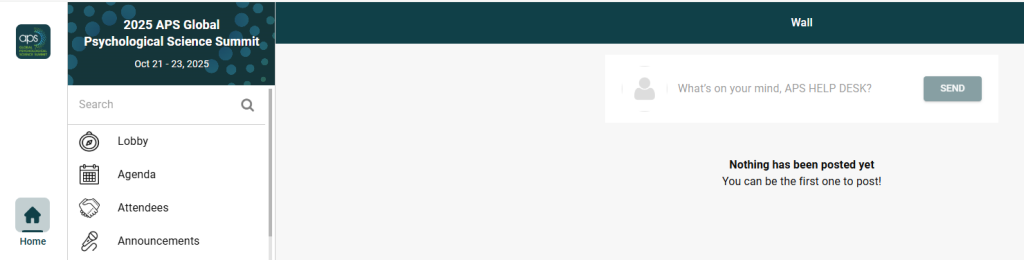
The Wall Feature
The Wall feature lets Global Summit attendees post text and pictures and “like” and comment on discussion threads.
Connecting With Other Attendees
On the online platform, click on the Attendees feature to find everyone registered for the event. To quickly send a connection request, click ‘Add’ next to someone’s name.

Click on a person you haven’t connected with to preview their basic profile information. You’ll notice there’s an ‘Add‘ button there, too. If the button says ‘Contact’ instead, it means the person hasn’t logged in to the platform yet.
When you click ‘Contact’, a message will be sent to the potential connection. The email includes who it’s from and a prompt to visit the link and join the APS Global Summit platform to reply to the message.
When using the Chat or Q&A engagement tabs in a live session, click on an attendee’s name to connect and explore their profile without leaving the current feature.
Connection Profile Overview
After you’ve connected with other attendees, click the Connections button to review everyone who’s accepted your requests and to respond to incoming requests.
This page has several functions to help you manage and interact with your connections:
1. Export Connections – In the connections feature, click on the download icon to export your connections. Enter an email address to receive a file containing all of your connections.
2. Connection Requests – A red numbered dot by the bell icon indicates that you have connection requests pending. Review and respond to incoming connection requests from other attendees.
3. Favorite – Favoriting someone adds a star next to their name in your connections list and keeps them at the top of your connections list.
4. Notes – Type notes about the connection. These notes are included when you export connections.
5. Remove – Clicking the below trash can icon removes the connection from your connections list, and they can no longer send you messages.

6. Message – Start a private chat with the connection.
7. Video – Start a private video chat with the connection.
8. If a connection has filled in accounts and contact information, such as their email, website, and LinkedIn link, these appear in the ‘Accounts’ section. Any past, present, or future APS Events you’re both registered for appear in the ‘Your Events With…’ section.
Messaging and Meeting
When you click the ‘Message’ or ‘Video’ button from a connection’s profile, you’re directed to the messages page. On the Messages page, you can do the following:
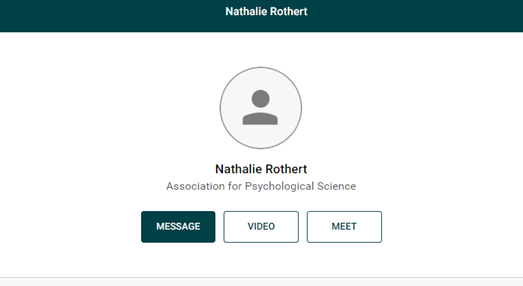
1. Message – Connect with fellow attendees.
2. Image – Upload an image to send.
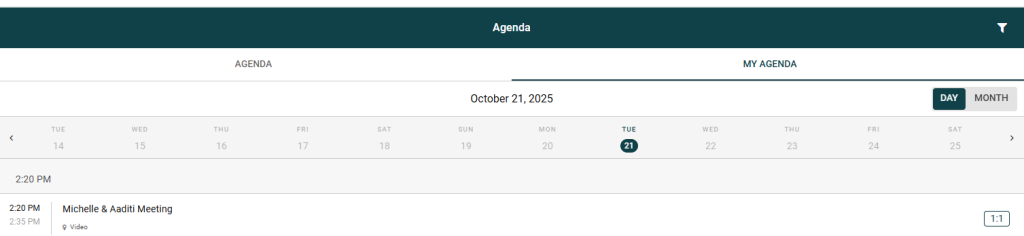
3. Propose Meeting – You can send a meeting request to a connection that you have made in the app. Please make sure to include a video meeting link, such as a Zoom link. Once your connection has accepted the request, it will appear in the connection’s profile and in both attendees personal agenda. You can then join at the scheduled time.
4. Video – Start a new video chat.
5. Add Participants – Invite more of your connections into the conversation.
6. Delete Conversation – Delete an existing conversation with fellow attendees.
7. New Conversation – Start a new chat with one or more of your connections.