Using the Search, Filter, Favorites, and Notes Functions
Using the Search Function
From the main Lobby, access the Search Bar by clicking on search in the top left-hand corner of the online platform above the Lobby feature.
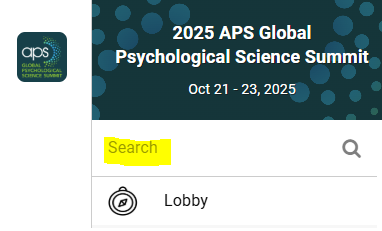
- Use this function to search the entire program by keyword, topic, session title, or speaker name.
- Click on a listing in the results to view a session or speaker.
- When viewing a session or speaker, you may click the “Search” link in the top banner to go back to the full search results.
Using the Filter Function – Agenda
1. Below are the available subject areas in the APS Global Summit. The subject areas are also listed in the Subject Areas Feature within the virtual event platform.
- Biological Psychology
- Clinical Science
- Cognitive Neuroscience
- Cognitive Science
- Cross-Cultural Psychology
- Cultural Psychology
- Developmental Psychology
- Experimental Psychology
- Industrial/Organizational Psychology
- Lifespan Development
- Methodology
- Neuroscience
- Other
- Perception
- Personality/Emotion
- Science of Behavior Change
- Social Psychology
- Teaching of Psychological Science
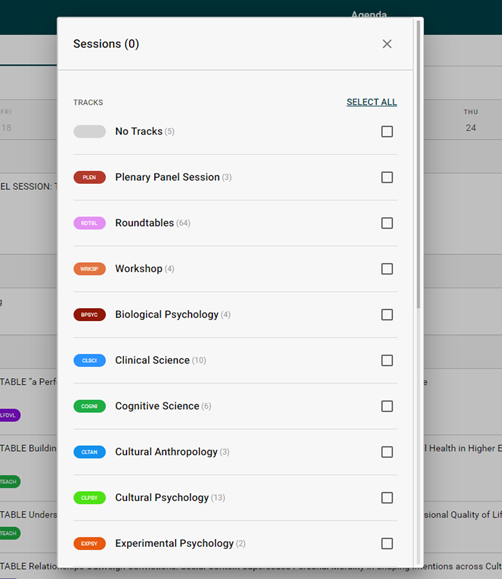
2. From the main lobby, click on the Agenda feature to filter sessions by session type and subject area. Please note that posters are not scheduled or presented live and are not included in the Agenda.

3. The below screen will appear. Scroll down through the list of subject areas and session types. Click on Clear and that will clear the options and allow you to click on the subject areas or session types to filter.

4. Click on Apply Filters.
How to Remove a Filter
- To remove a filter, click on Select All. That will highlight all the available sessions and subject areas.
- Then click on Apply Filters below.
How to Favorite a Poster or Person
You can favorite a poster, speaker, or attendee to easily find it again.
1. Find the poster, speaker, or attendee listing within the relevant feature that you would like to favorite.
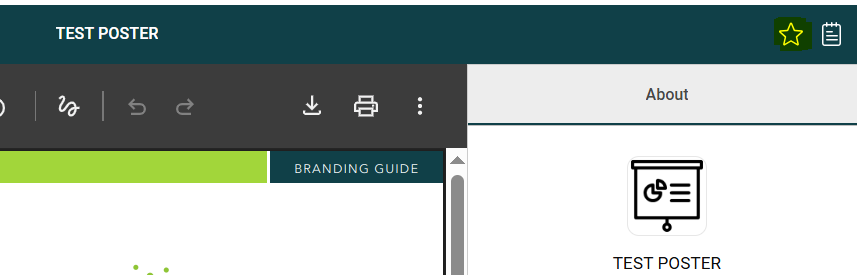
2. Click on the star in the top right.
3. To find your favorited items:
- Go to the feature (Posters – [subject area], speaker, or attendee in your connections)
- Click the filter button on the top right.
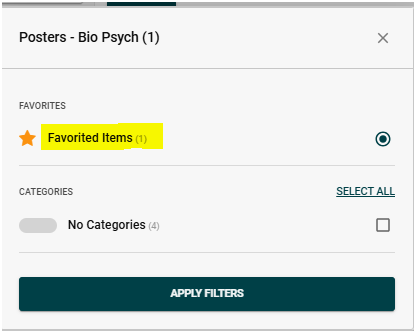
- Click “Favorited Items” > then Apply Filters.
- When the “Favorited Items” filter is applied, you will see “ON” in the top right-hand corner.
- You will see the list of your favorited posters, speakers, or attendees.
- Click “ON” to remove the “Favorited Items” filter, then click on Select All. Finally clicking Apply Filters to return to the full list of posters, speakers, or attendees.


Using the Notes Function
Attendees often find it useful to jot down important Session take-aways, information about a connection, impressions after attending a session, or whatever else is on their minds. With the online platform, attendees can take notes inside the platform as they use it, so there’s no need to switch to a note-taking app.
Attendees can take notes within the features in the following list:
- Plenary Sessions
- Workshops
- Speakers
- Posters
Taking Notes
- Select the Notebook icon in the upper right-hand corner to start taking notes.
- The Notebook will open so you can add your notes, then click ‘Done’ to save.
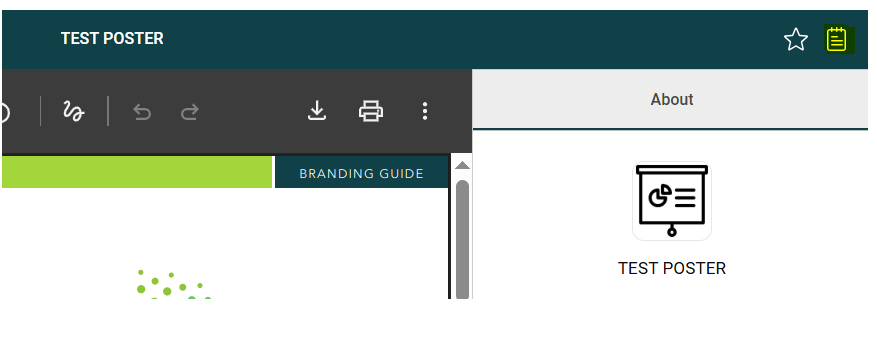
- If attendees want to take more notes or review the notes they already took for a certain item, they can return to the connection, feature, or feature listing item and click the Notebook icon to open their notes.